Skip to content
Veresimo

Getting started

First launch: for your shop or for yourself?

The first time you open it, Veresimo asks how you'll use it. The two books are kept apart, and you can switch any time.

  1. Open the app.
  2. Tap For my shop or For myself.
  3. If you chose For my shop, type your shop's name and tap Start your ledger. Your customers see this name in your messages.

Tip: Have a backup from your old phone? Tap I have a backup, restore it on the same screen. You can change the use later in Settings → Use.
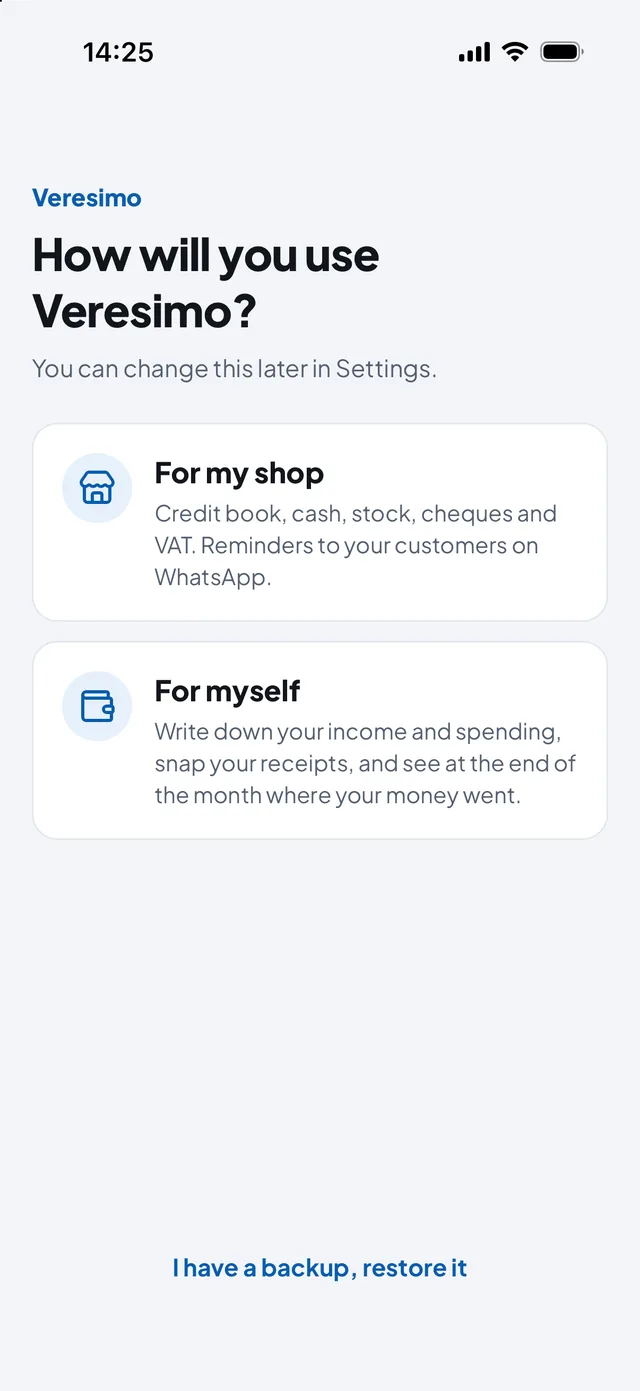
First launch: For my shop and For myself options, and the I have a backup, restore it link

Moving over from a paper book

No need to re-enter old entries one by one: put everyone in with today's balance on a single screen.

  1. Open Settings and scroll to Import from a paper ledger.
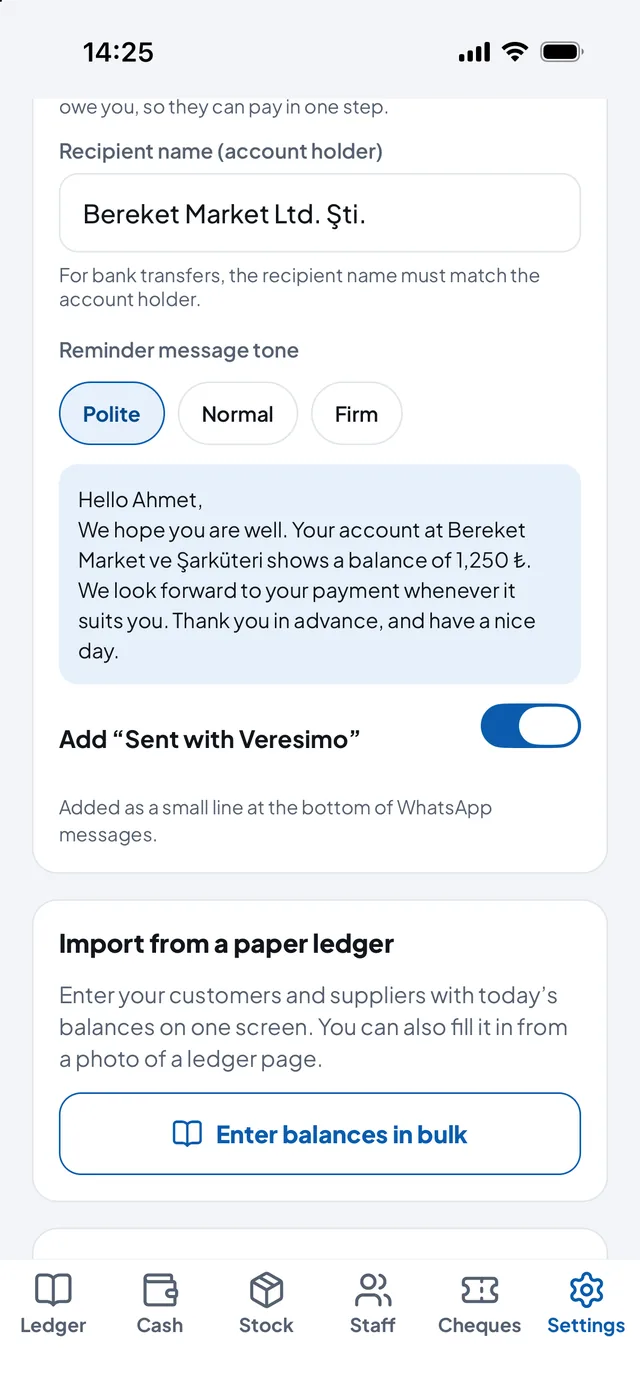
  2. Tap Enter balances in bulk.
  3. Type each customer's and supplier's name and today's balance.
  4. Save. From then on, carry on with You gave and You got.

Tip: While your book is still empty, the I have a paper ledger, import it all button on the Ledger screen takes you to the same place.

Settings: reminder tone, message settings and the Enter balances in bulk button under Import from a paper ledger

The shop book

Adding a customer or supplier

Customers who buy on credit live on one tab; suppliers you owe live on the other.

  1. On the Ledger, choose the Customers or Suppliers tab.
  2. Tap Add customer (or Add supplier) at the bottom right.
  3. Type the name or tap Choose from contacts. A phone number is needed for WhatsApp reminders.
  4. Add an IBAN, tax number or address if you like, then Save.

Tip: If the same name or number is already saved, you are warned, so nobody is added twice.

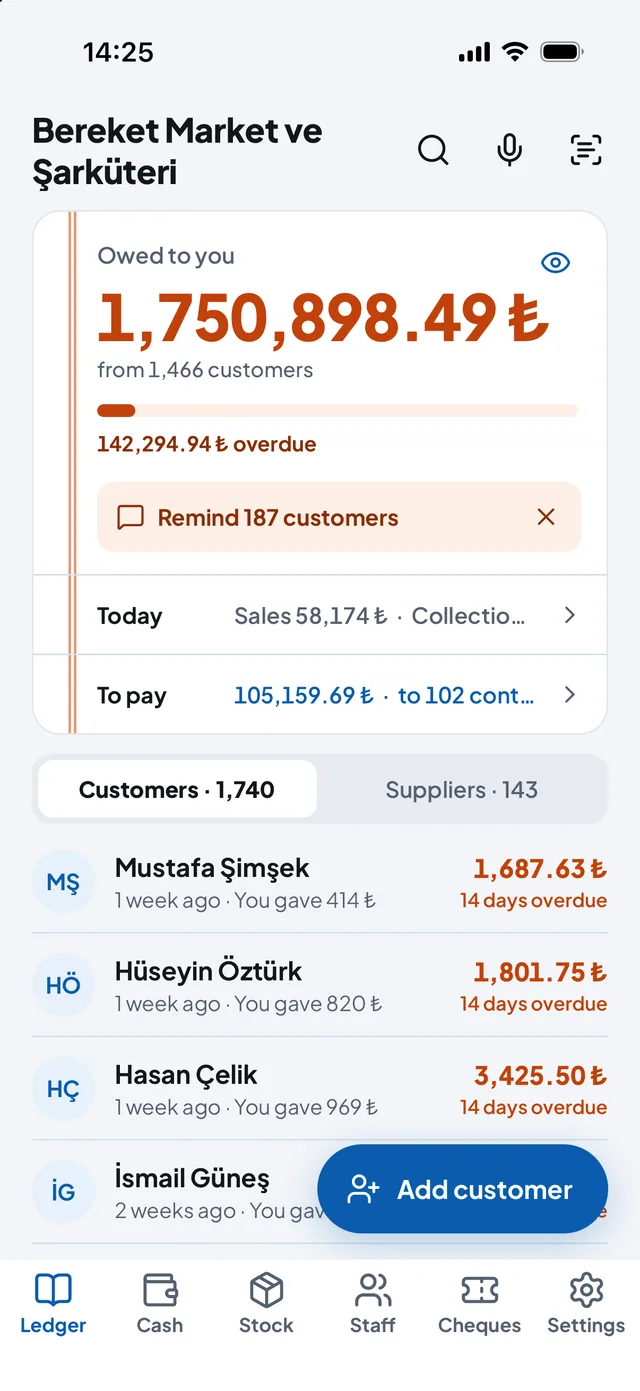
Ledger screen: money owed to you, the customer list and the Add customer button at the bottom right

Credit entries: You gave, You got

When a customer buys on credit, You gave; when they pay, You got. The balance works itself out.

  1. On the Ledger, tap the customer.
  2. Tap YOU GAVE (on credit) or YOU GOT (a payment) at the bottom.
  3. Type the amount; the new balance shows right below.
  4. Add a note, a receipt photo or a due date if you like, then Save.

Tip: Mistakes are cancelled, not erased: tap the entry under Transactions on the customer page. The history always adds up.

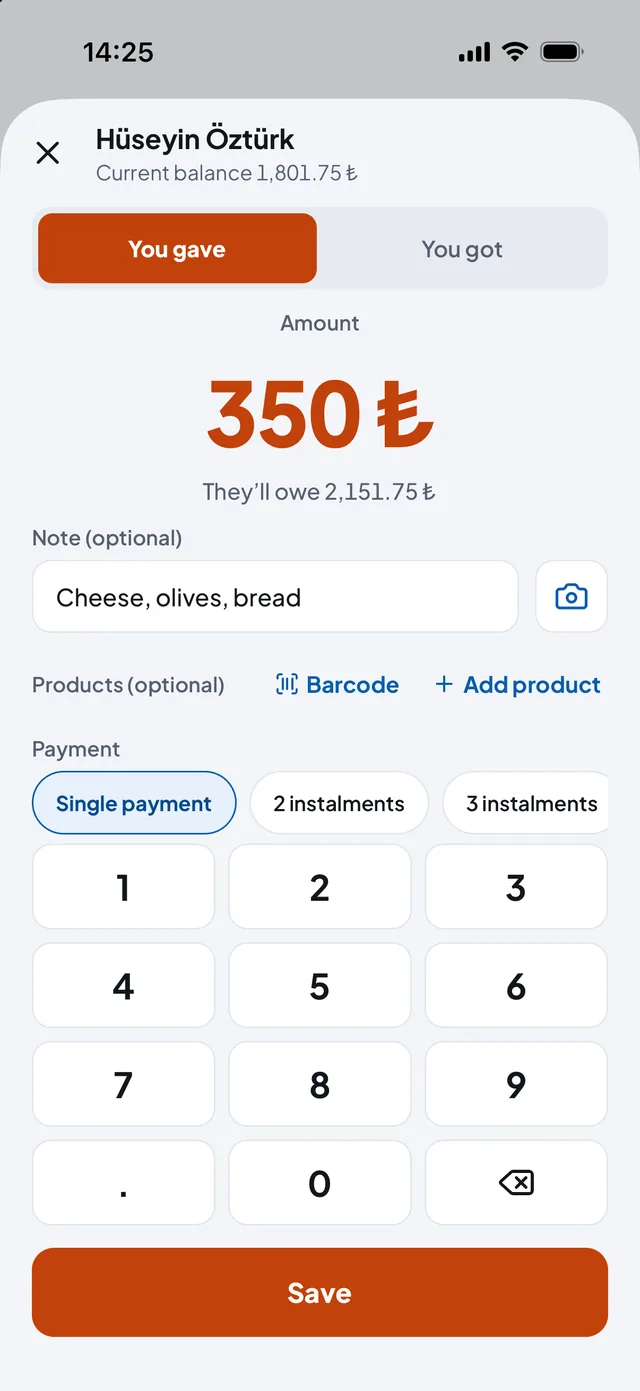
New entry: You gave selected, 350 lira, the new balance, the note field and the Save button

WhatsApp reminders and payment promises

You don't write the reminder: Veresimo writes it and opens WhatsApp, you just send it.

  1. On the Ledger, tap the customer.
  2. Tap Remind; the ready message opens in WhatsApp.
  3. Check it and press send.
  4. If the customer says "I'll pay Friday", tap Record a payment promise and pick the day; you're reminded that morning.

Tip: Set the tone (polite, normal or firm), your IBAN and the account name in Settings → Payment details and messages.

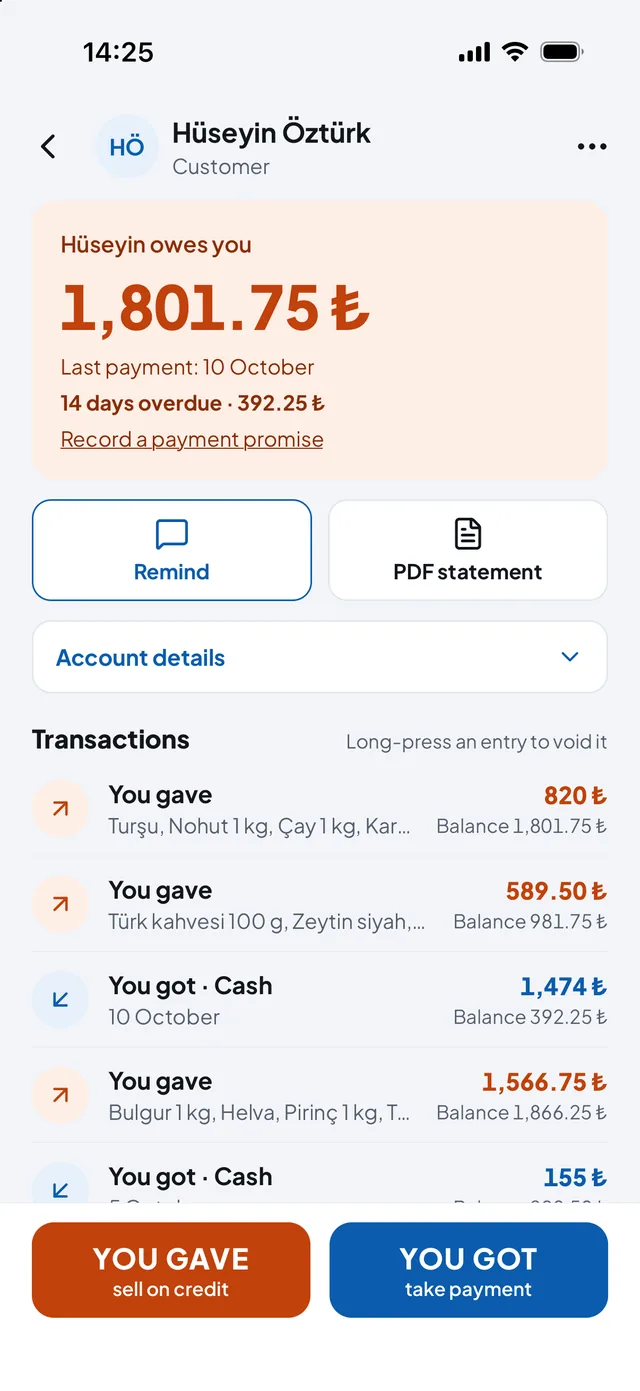
Customer page: balance, overdue amount, Record a payment promise, Remind and PDF statement buttons, transactions

Sending a statement

When a customer asks what they owe, show them what they bought, what they paid and what's left, on one page.

  1. On the Ledger, tap the customer.
  2. Tap PDF statement and choose the period.
  3. When the PDF is ready, send it on WhatsApp or any app you like.

Tip: With Pro, your shop's logo appears at the top: Settings → Business logo.

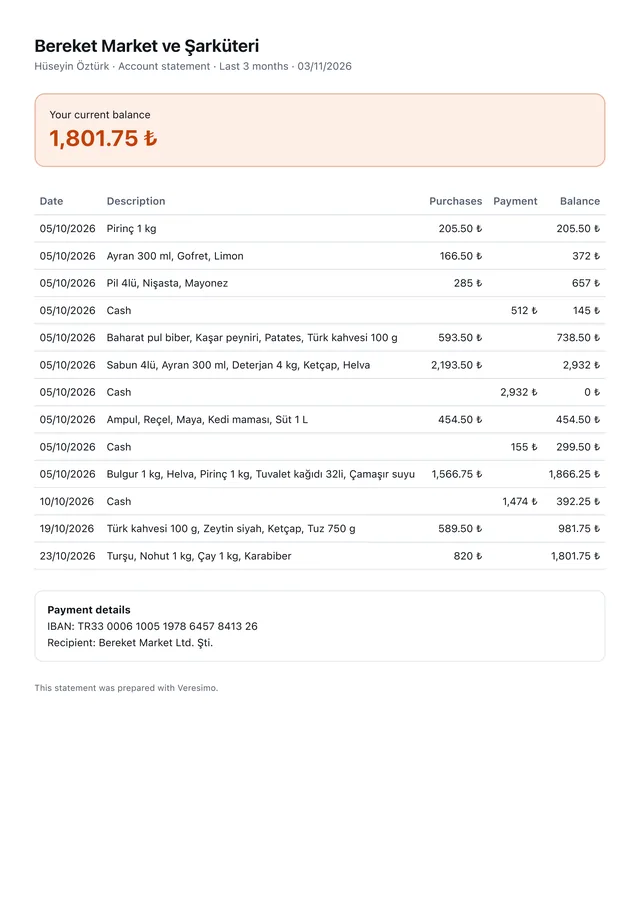
First page of a statement PDF made by Veresimo: the current balance and dated entries

Daily cash and the end-of-day count

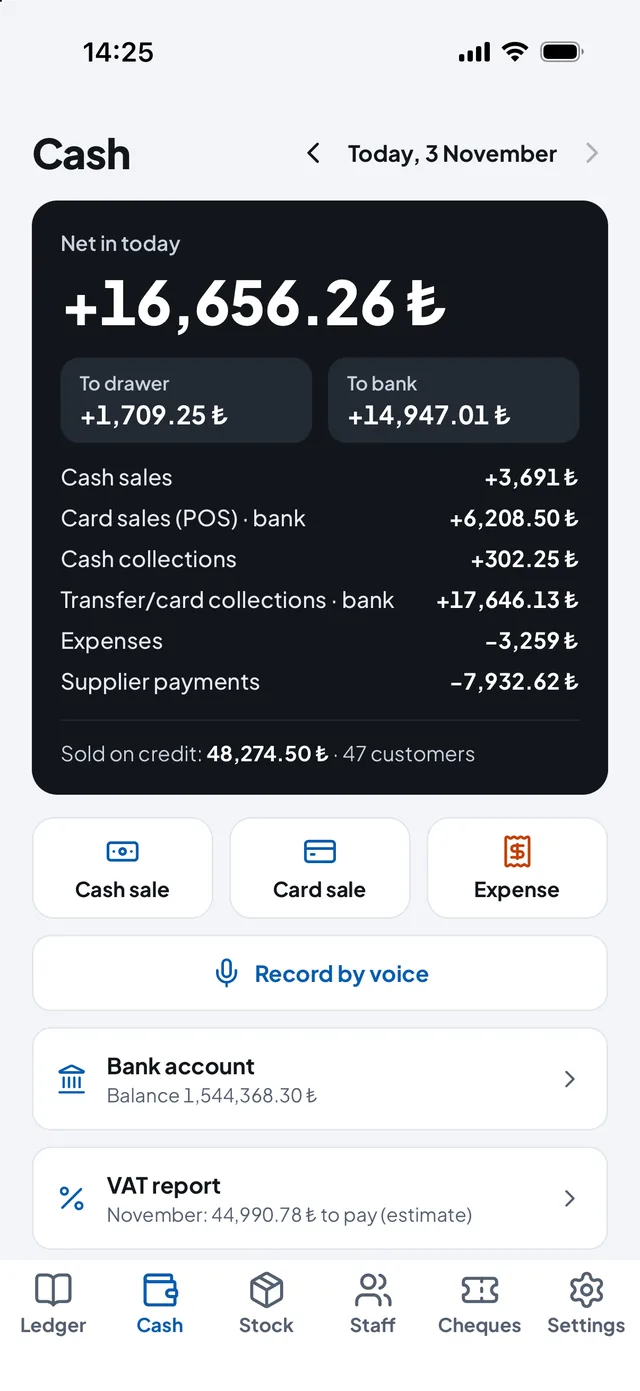
Enter cash sales and expenses under Cash; payments on credit come over from the book by themselves.

  1. Switch to the Cash tab at the bottom.
  2. Tap Cash sale, Card sale or Expense.
  3. Type the amount; for an expense, pick the category and whether it came from the drawer or the bank; Save.
  4. At closing, tap End-of-day cash count further down and count the drawer; you see it next to what should be there.

Tip: Go back to earlier days with the arrows beside the date. To cancel a wrong entry, press and hold it.

Cash: today's net, Cash sale, Card sale and Expense buttons, Record by voice, bank and VAT report

Scanning an invoice or receiptPRO

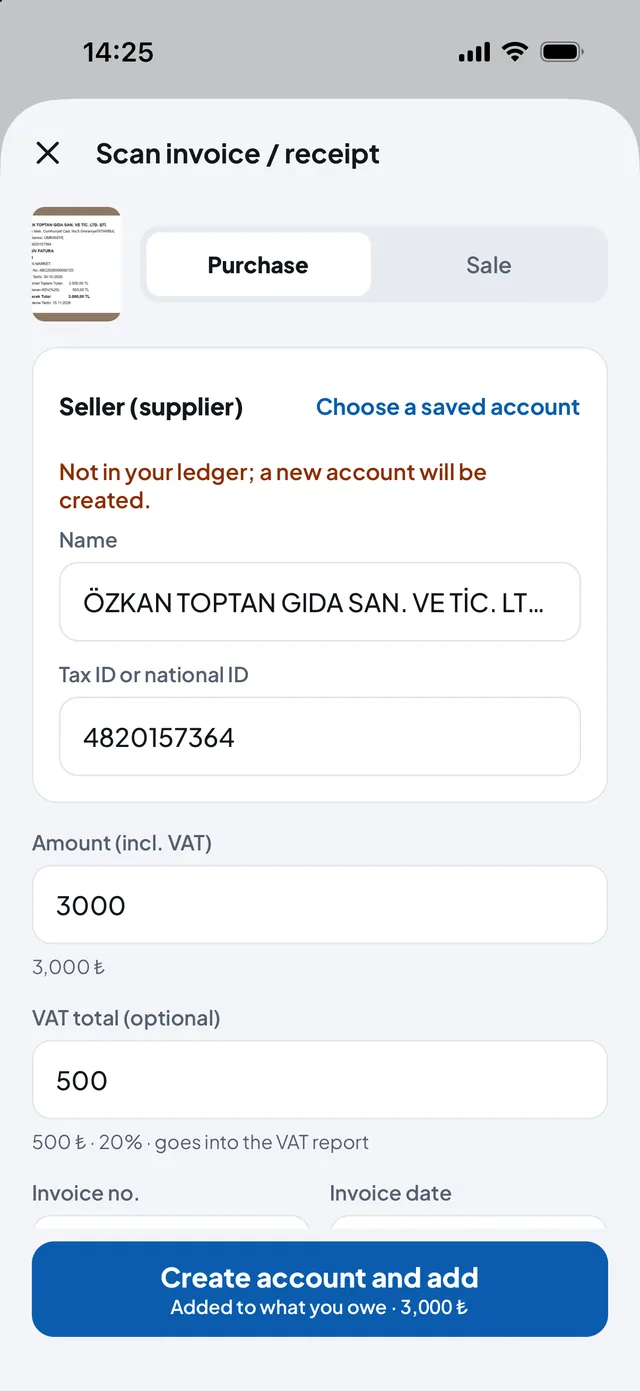
Don't type a supplier's invoice: take a photo and Veresimo reads it.

  1. Tap the scan icon at the top of the Ledger.
  2. Take photo or Choose from gallery.
  3. Check what was read: purchase or sale, seller, tax ID, amount and VAT. If the seller isn't in your book, it says a new account will be created.
  4. Tap the button at the bottom to add it.

Tip: A till receipt counts as paid; for an invoice you're asked for a due date. Reading happens on your phone and the photo is never sent anywhere. Made for Turkish documents.

Invoice scanning: seller name, tax number, amount and VAT read, a new account to be created, and the add button

Voice entryPRO

Hands full? Say it and it's written down. Nothing is saved until you confirm.

  1. Tap the microphone at the top of the Ledger (Cash has Record by voice too).
  2. Speak: "Put 350 lira on Ahmet's tab", "Mehmet paid 200", "Electricity bill 480 expense".
  3. Check the entry on screen and confirm.

Tip: It listens in the app's language: Turkish or English.

Ledger screen: search, microphone and invoice scanning icons at the top

Stock and barcodesPRO

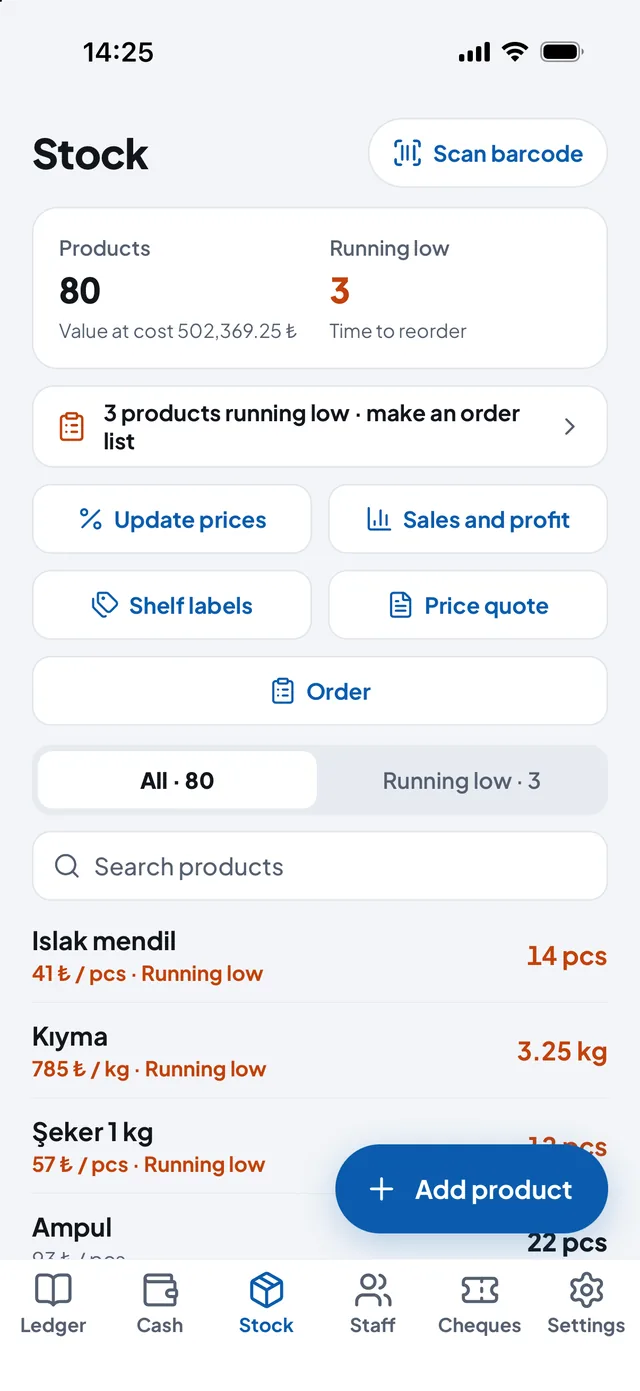
Enter your products once; stock goes down as you sell, and you're told when it runs low.

  1. Switch to the Stock tab at the bottom.
  2. With Add product, enter the name, barcode, price and quantity.
  3. When selling on credit, scan the item with Barcode on the You gave screen; stock goes down by itself.
  4. When goods arrive, tap Scan barcode at the top, scan the item and choose Goods in.

Tip: Items running low are listed at the top; put together an order list and send it to your supplier on WhatsApp.

Stock screen: Scan barcode, product count, low stock and order list, Add product button

VAT reportPRO

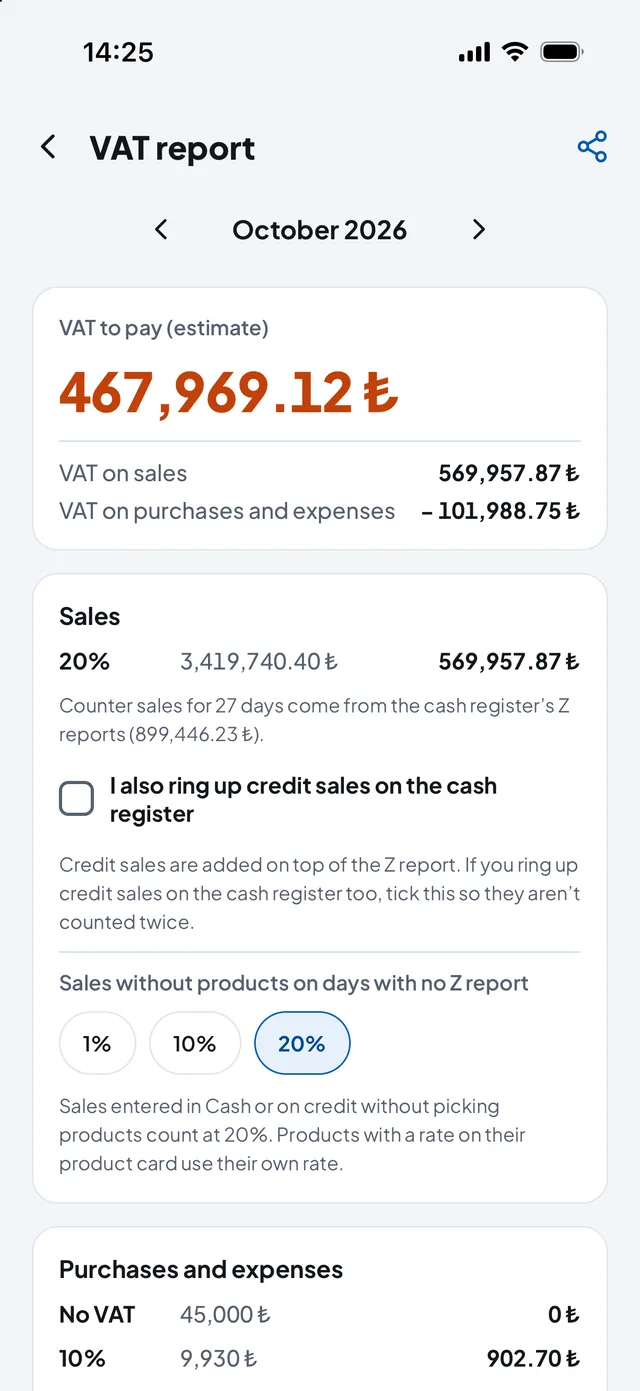
This month's VAT estimate under Turkish rules: VAT on sales minus VAT on purchases and expenses.

  1. On the Cash tab, tap VAT report.
  2. Pick the month with the arrows.
  3. If you use a till, enter each day's Z report from the Z report line under Cash; it is split by rate.
  4. Send the PDF to your accountant with the share icon at the top right.

Tip: The VAT figure is an estimate; your accountant's return is what counts.

VAT report: estimated VAT to pay, VAT on sales and purchases, rates

The personal book

Recording spending and income

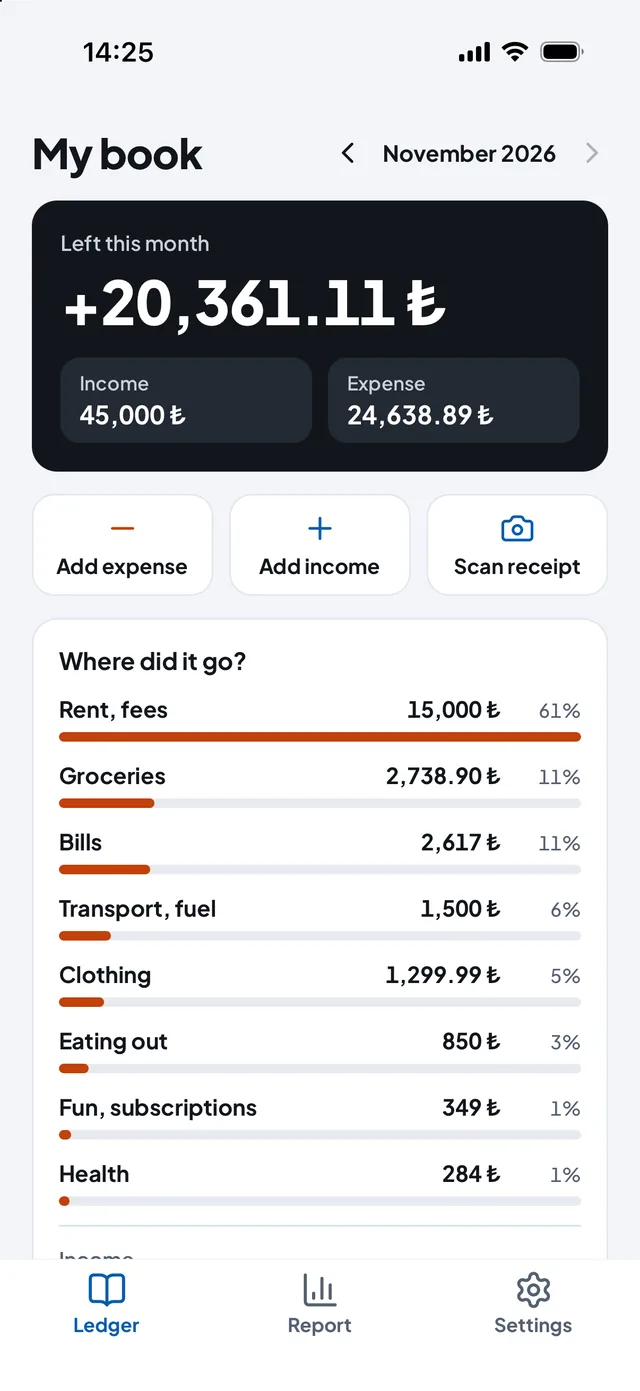
Write it down as you spend; see what's left before the month is out, and where the money went.

  1. In My book, tap Add expense or Add income.
  2. Type the amount and pick a category (groceries, bills, rent ...).
  3. For an expense, mark card or cash; Save.

Tip: Go back to earlier months with the arrows at the top.

Personal book: left this month, Add expense, Add income and Scan receipt buttons, spending by category

Recording an expense from a receiptPRO

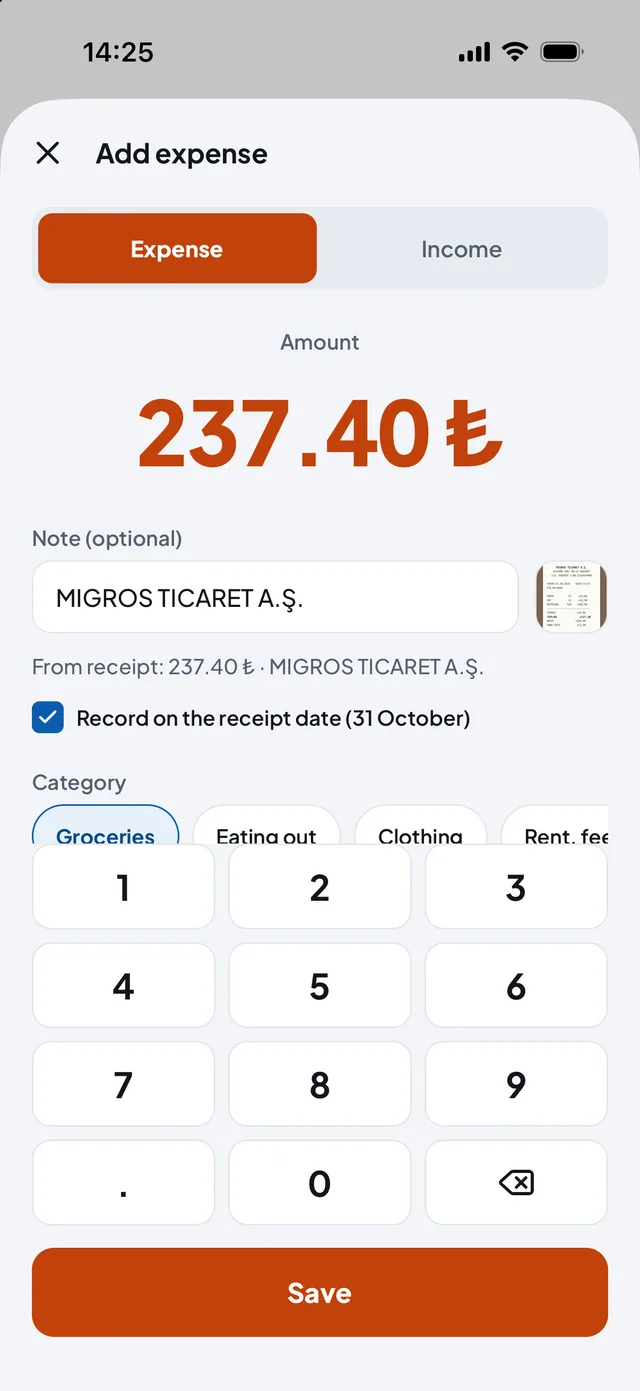
Take a photo of a till receipt or a bill; the amount, date and shop are read.

  1. In My book, tap Scan receipt.
  2. Take a photo of the receipt or choose one from your gallery.
  3. The amount, shop and category fill in; record it on the receipt's date if you like.
  4. Check it and Save.

Tip: Bills like electricity and internet go into Bills. The receipt is read on your phone and never sent anywhere. Made for Turkish receipts.

Add expense: amount and shop read from a receipt, record on the receipt date, categories

The yearly report

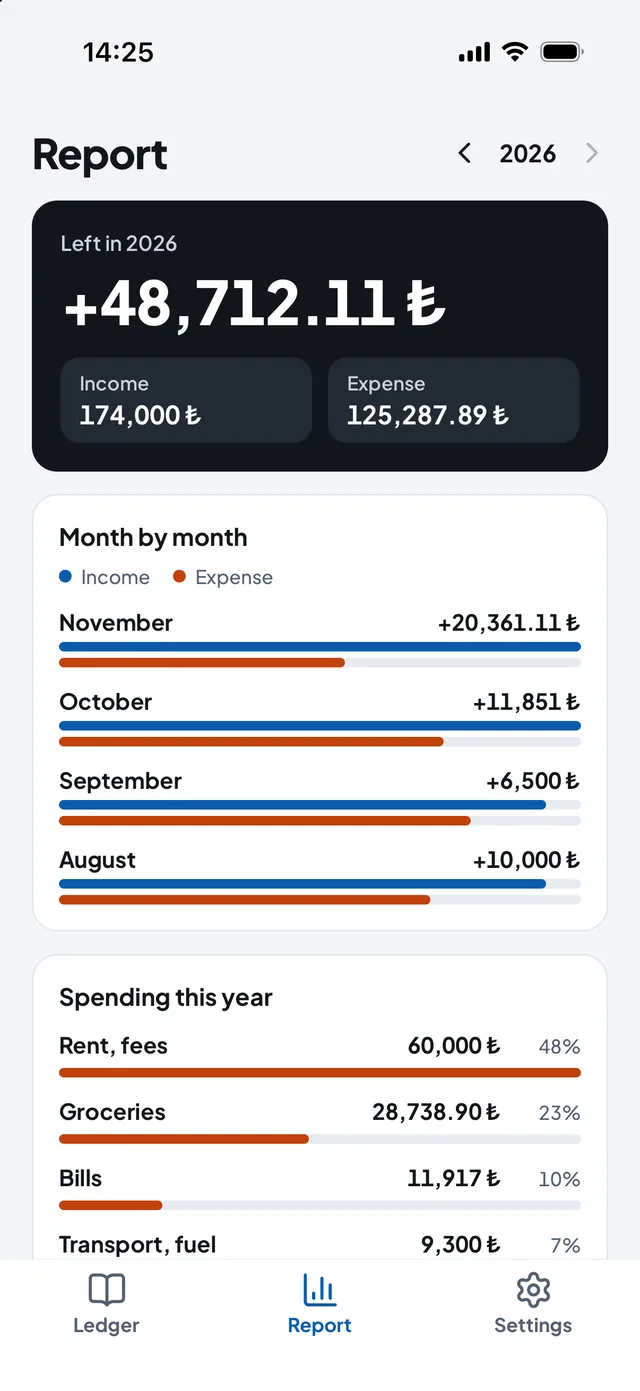
Twelve months side by side: what came in, what went out, and where most of it went.

  1. Switch to the Report tab at the bottom.
  2. Pick the year with the arrows at the top.

Tip: The report is free.

Report: left this year, month-by-month income and expense bars, the year's spending categories

Settings and backups

Backing up and moving to a new phone

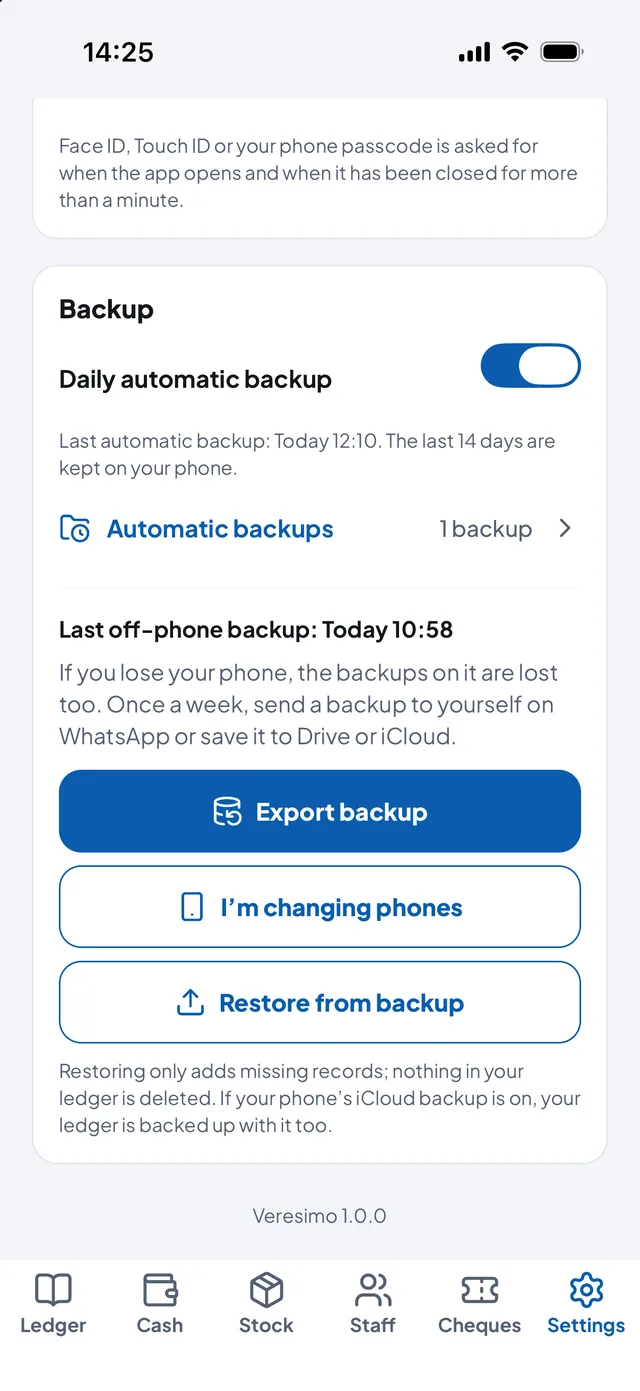
Your book lives only on your phone, and you keep the backup.

  1. In Settings, scroll to Backup and keep Daily automatic backup on.
  2. Once a week, tap Export backup and send the file to yourself on WhatsApp or save it to Drive or iCloud.
  3. When changing phones, tap I’m changing phones and send the file to your new phone.
  4. On the new phone, install Veresimo, tap I have a backup, restore it and pick the file.

Tip: Automatic backups keep the last 14 days, but they go with the phone if it's lost; don't forget to export.

Settings: app lock, daily automatic backup, Export backup, I’m changing phones and Restore from backup

Reminder tone, IBAN and account name

With your IBAN in the message, paying you takes the customer one step.

  1. In Settings, scroll to Payment details and messages.
  2. Enter your IBAN and the recipient name (account holder).
  3. Pick the reminder tone: polite, normal or firm.
  4. Save.

Tip: For bank transfers the recipient name must match the account holder. Your IBAN also appears on statements.

Settings: recipient name, polite, normal and firm tone options and a sample reminder

Lock, language and use

Three small but important options in Settings.

  • App lock: it won't open without Face ID, Touch ID or your phone passcode.
  • Language · Dil: Türkçe, English or your phone's setting. Messages to customers are written in this language too.
  • Use: switch between For my shop and For myself. The two books are kept apart and nothing is deleted.